There are times when it is good to be able to automatically reference the Name of your Excel workbook or worksheet that you are doing your report on. If you wish to have the results in a cell refer to the Entire Name and Location of your worksheet and workbook, that is easy: You merely put CELL(“filename”) in any cell, and you get the entire kit and caboodle such as the following (yours may even be longer):
C:\My Documents\ExcelBlog2011\[Sales Report.xlsx]Sales 2011
But what if you want to just to have your cell reference the Name of the Worksheet you are on? This can be very useful when printing reports, and can be accomplished using the following formula:
=MID(CELL("filename", A1),FIND("]",CELL("filename",A1),1)+1,254)
Very nice, you say, but how does it work? Here it is broken down starting with the FIND function in the middle of the equation:
1. In this instance, FIND looks for the Right Square Bracket in the resulting CELL(“filename”, A1) string (please note that the cell reference “A1” is entirely arbitrary, and any cell reference will do).
2. MID looks in the same resulting CELL(“filename”, A1) string and uses the Start Number that was found in Step #1 above and Adds 1 (so you do not get the Bracket in your result).
3. The final argument, 254, merely allows up to 254 characters to be returned.
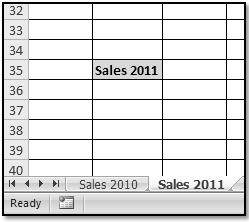
The final result is the Name of the Worksheet you are on, or in this case, Sales 2011.
Powerful Stuff! Copy the formula and paste it into your own worksheet to see how Cool this works.
Cheers!
Wednesday, March 16, 2011
Wednesday, March 9, 2011
Form Controls Rock!
There are few tricks in Excel that can make you into a Rock Star faster and easier than Form Controls.
Some of the main reasons Form Controls are useful include:
1. They are Intuitive for non-techies to use
2. They can be used to force users to choose one of your provided options and maintain database Input Integrity
3. They enhance your worksheet with a professional visual appeal, giving true Pizzazz!
Form Controls are quite easy to use and require no programming knowledge. They can be used to easily place values in worksheet cells, and make you Look like a Genius in the process.
These marvelous controls can be accessed in Excel 2007 or 2010 by:
1. Making sure that the Developer tab is on your ribbon tabs
2. Go to the Controls section and click on the down-arrow beneath the toolbox
3. Choose the Form Control you wish to use in your worksheet
You have your choice of Combo Boxes, Spin Buttons, Check Boxes, List Boxes, and much more.
For example, let’s say that you wish have a Check Box (or multiple check boxes) on your worksheet that will make a cell value either True or False. These responses can then be used in formulas that activate or manipulate other sections of your worksheet or workbook.
Check Boxes can easily be chosen and drawn on your worksheet with a click of the mouse. It is then a simple matter of Right-Clicking on the Check Box and choosing Format Control (this works similarly the other form controls as well.) You can then choose the cell or cells you wish to Link Your Control to and Format the Visual Style of your control
How Absolutely Rocking Cool is that! Take 5 minutes and make your Excel worksheets look like you spent hours of programming time on them. Give it a try – Add some Form Controls to your worksheet and give it some Bling!
Wednesday, March 2, 2011
More AutoFilter Tricks
When Excel 2007 debuted, it brought with it Enhanced Functionality to the AutoFilter tool. If you have a database or table with headings in the top row, you can use AutoFilter to do some very amazing, On-the-Fly feats!
First of all, let’s turn our data into a Table by selecting any single cell within the database, and clicking Ctrl+T. Bamm, we have a formatted table with AutoFilter turned on!
In older versions of Excel, your Autofilter choices were pretty limited, but with Excel 2007 and Excel 2010, you have a much greater variety of options available. For instance:
AutoFilter, a fabulous tool for On-the-Fly manipulation of your data. Try some of these Cool Autofilter Features today!
First of all, let’s turn our data into a Table by selecting any single cell within the database, and clicking Ctrl+T. Bamm, we have a formatted table with AutoFilter turned on!
In older versions of Excel, your Autofilter choices were pretty limited, but with Excel 2007 and Excel 2010, you have a much greater variety of options available. For instance:
• With Text Fields, you can use the built-in Text Filters to display cells that Start with, End with, or Contain the text of your choice.
• With Date Fields, you can easily use the Date Filters to sort for records from Last Month, This Month, Next Quarter, or nearly any parameter you can imagine. If you do not see it as a premade option, you can simply create a Custom Autofilter to suit your needs.
• With Numeric Fields, you can use the Number Filters to identify Above Average and Below Average, in addition to the choices in earlier versions of Excel.
• If you have used Color to highlight some of your records, you can even Filter by Color with the dropdown feature (this will Wow them in the boardroom)!
Wednesday, February 23, 2011
Excel 2010 Certification
In these uncertain economic times, it is always good to be able to set yourself apart from your competition through the pursuit of Education and objective Certifications. Anyone can claim to be an Expert in Excel when applying for a new job or elevated position, but those who have bonafide certification from Microsoft will inevitably be held in higher esteem (unless, of course, you are competing against the owner’s nephew…).
Passing the Microsoft Exam 77-882 awards you the Microsoft Office Specialist certification in Excel 2010. Having successfully taken MOS certifications in the past, I can tell you that the preparation work for the testing will most probably introduce you to new skill sets that are outside of your comfort zone. This is, in itself, a good exercise for any Excel Professional.
One note of caution, however: Currently, Microsoft provides very little in the way of formal study materials for the Excel 2010 exam. This can be circumvented, however, by using the plethora of study materials available for the Excel 2007 certification exam and then making sure that you study the new features introduced in Excel 2010. This is important, as Microsoft always likes to test on the new elements being introduced in its latest software upgrade.
In addition to studying the materials for the Excel 2007 certification, it would be wise to become at least reasonably familiar with the following New Excel 2010 tools:
• Sparklines
• Backstage
• Slicers
• New Pivot Table Features
• New Statistical Functions
Becoming Microsoft certified (my wife tells me I am Certifiable, but I think she may be referring to something else…) in Excel can give you a Distinct Advantage in these competitive times. You may wish to consider it…
Passing the Microsoft Exam 77-882 awards you the Microsoft Office Specialist certification in Excel 2010. Having successfully taken MOS certifications in the past, I can tell you that the preparation work for the testing will most probably introduce you to new skill sets that are outside of your comfort zone. This is, in itself, a good exercise for any Excel Professional.
One note of caution, however: Currently, Microsoft provides very little in the way of formal study materials for the Excel 2010 exam. This can be circumvented, however, by using the plethora of study materials available for the Excel 2007 certification exam and then making sure that you study the new features introduced in Excel 2010. This is important, as Microsoft always likes to test on the new elements being introduced in its latest software upgrade.
In addition to studying the materials for the Excel 2007 certification, it would be wise to become at least reasonably familiar with the following New Excel 2010 tools:
• Sparklines
• Backstage
• Slicers
• New Pivot Table Features
• New Statistical Functions
Becoming Microsoft certified (my wife tells me I am Certifiable, but I think she may be referring to something else…) in Excel can give you a Distinct Advantage in these competitive times. You may wish to consider it…
Wednesday, February 16, 2011
Using the TEXT Function
No, I’m not going to be discussing Texting on Your Cell Phone in this post (I may live in southern California, but I am not that shallow…). Here is what we will be looking at:
Although Excel is all about working with numbers, there are times when you want to be able to manipulate your data into specially formatted Text. The solution is the TEXT function! By using special format strings, TEXT allows you to specify how you display the numerical value in text with formatting of your choice.
The TEXT syntax is: TEXT(value, format_string)
For example, the format_string $#,##0 for the second part of the TEXT function provides a monetary formatting with a dollar sign and comma that makes for immediate comprehension.
TEXT can be used with Concatenation to return user-friendly (especially if the user is not particularly spreadsheet savvy) reports. For example, in the illustration below, the following formula was created in the merged cells of A6 and B6:
="The Net Profit is"&TEXT(B4," $#,##0")
The outcome is a cleanly formatted statement as to the resulting profit (something even your boss can understand…). Happy Excelling All!
Although Excel is all about working with numbers, there are times when you want to be able to manipulate your data into specially formatted Text. The solution is the TEXT function! By using special format strings, TEXT allows you to specify how you display the numerical value in text with formatting of your choice.
The TEXT syntax is: TEXT(value, format_string)
For example, the format_string $#,##0 for the second part of the TEXT function provides a monetary formatting with a dollar sign and comma that makes for immediate comprehension.
TEXT can be used with Concatenation to return user-friendly (especially if the user is not particularly spreadsheet savvy) reports. For example, in the illustration below, the following formula was created in the merged cells of A6 and B6:
="The Net Profit is"&TEXT(B4," $#,##0")
The outcome is a cleanly formatted statement as to the resulting profit (something even your boss can understand…). Happy Excelling All!
Wednesday, February 9, 2011
Better Control with Comments
First of all, I want to express my gratitude to all of my Kindle subscribers. We are now 250+ strong and Excel Enthusiasts is in the Top 1% of best-selling Kindle business and technology blogs. So, Thank You! Please send me an email at ExcelEnthusiast@gmail.com if you ever have a comment or need help on an Excel-related problem. I always enjoy hearing from you.
Now to today’s topic, “Better Control with Comments”. Cell Comments (or “Notes” as they are sometimes called) are the Excel equivalent of the ubiquitous Post-It Notes that have been popular in businesses for so many years. Cell Comments can do so much more, however!
The reason you want to use Comments is simply that of Control. Workbooks can become overwhelmingly complex and, what may seem straightforward and obvious when you create the spreadsheet may be bewildering in the future (especially for other users) if you do not have a few built-in directions. Here is where Comments shine!
As with so many things Excel, there are a variety of ways you can insert and format comments. I have, however, been a long-time believer in using the Right-Click option (“Right-Click is Our Friend” is a phrase in my classes) with your mouse, as it is intuitive and context-sensitive.
To insert a Comment, simply Right-Click on a cell and choose Insert Comment.
• This will insert a comment with the Username of the PC automatically included in the textbox (you can overwrite the username or change it under your general settings)
• A Small Red Triangle will appear in the upper corner of any cell that includes a comment
• You can edit the comment at any time by right-clicking the cell and choosing Edit Comment
• To display a comment in a Static manner, right-click and choose Show/Hide Comments
You can do More, however! Let’s suppose that you different types of data in your worksheet and you want to Customize the Look of your comments for various groupings. Here is what you do:
1. Right-click the cell and choose Edit Comment
2. When the comment appears, right-click the edge of the textbox and choose Format Comment
3. Choose the Colors and Lines tab and customize your special look for the comments by changing Fill Color, Transparency, Line Color and Style
Comments can be a useful tool in your Excel Best Practices regimen, and they don’t have to be boring! If you haven’t been doing so, start using comments today, and add a Little Color and Pizzazz to Liven Them Up!
Now to today’s topic, “Better Control with Comments”. Cell Comments (or “Notes” as they are sometimes called) are the Excel equivalent of the ubiquitous Post-It Notes that have been popular in businesses for so many years. Cell Comments can do so much more, however!
The reason you want to use Comments is simply that of Control. Workbooks can become overwhelmingly complex and, what may seem straightforward and obvious when you create the spreadsheet may be bewildering in the future (especially for other users) if you do not have a few built-in directions. Here is where Comments shine!
As with so many things Excel, there are a variety of ways you can insert and format comments. I have, however, been a long-time believer in using the Right-Click option (“Right-Click is Our Friend” is a phrase in my classes) with your mouse, as it is intuitive and context-sensitive.
To insert a Comment, simply Right-Click on a cell and choose Insert Comment.
• This will insert a comment with the Username of the PC automatically included in the textbox (you can overwrite the username or change it under your general settings)
• A Small Red Triangle will appear in the upper corner of any cell that includes a comment
• You can edit the comment at any time by right-clicking the cell and choosing Edit Comment
• To display a comment in a Static manner, right-click and choose Show/Hide Comments
You can do More, however! Let’s suppose that you different types of data in your worksheet and you want to Customize the Look of your comments for various groupings. Here is what you do:
1. Right-click the cell and choose Edit Comment
2. When the comment appears, right-click the edge of the textbox and choose Format Comment
3. Choose the Colors and Lines tab and customize your special look for the comments by changing Fill Color, Transparency, Line Color and Style
Comments can be a useful tool in your Excel Best Practices regimen, and they don’t have to be boring! If you haven’t been doing so, start using comments today, and add a Little Color and Pizzazz to Liven Them Up!
Tuesday, February 1, 2011
Database Functions = Excel Muscle!
In our continued exploration of Excel this week, we are going to take a look at what is typically referred to as an “Advanced Excel” function. Don’t be concerned, however, because although it seems a bit complex at first, it is really quite easy to use.
Database Functions are extraordinarily powerful and come in different types. Among the more commonly used of these special functions are DSUM, DAVERAGE, and DCOUNT. In order to gently break into this subject, we are going to look at the DCOUNT database function, since once you know how to use this, the others will be simple additions to your Excel Arsenal.
Let’s say that you have a database of 5,000 records and four Columns (or “Fields” as they are more appropriately called). Your four columns have the following headers in cells A1:D1
Month, SalesPerson, Product, SalesValue
DCOUNT counts the cells that contain numbers in a database that match conditions that you specify, and has the following syntax, (Note that if a field is omitted, DCOUNT counts all records in the database that match the criteria):
DCOUNT(Database, Field, Criteria)
Database is your entire range, with the first row of the database containing labels for each column.
Field refers to which column is used in the function. Enter the column label enclosed between double quotation marks, such as "SalesPerson" or "SalesValue," or a number (without quotation marks) that represents the position of the column within the list: 1 for the first column, 2 for the second column, and so forth.
Criteria is the range of cells that contains the conditions that you specify. You can use any range for the criteria argument, as long as the argument includes a column label.
Now, let’s say that you want to count all sales for John Smith which were greater than $1,000. Here is what you do:
Create a Criteria block in cells F1:I2 like the following illustration:
Then go to an open cell (e.g. F4) and put the following formula in place:
=DCOUNT(A1:D5001, “SalesValue”, F1:I2)
Bam! Your answer is given. Seriously, try this out; you will be amazed at the new Muscle it will give you in Excel!
Database Functions are extraordinarily powerful and come in different types. Among the more commonly used of these special functions are DSUM, DAVERAGE, and DCOUNT. In order to gently break into this subject, we are going to look at the DCOUNT database function, since once you know how to use this, the others will be simple additions to your Excel Arsenal.
Let’s say that you have a database of 5,000 records and four Columns (or “Fields” as they are more appropriately called). Your four columns have the following headers in cells A1:D1
Month, SalesPerson, Product, SalesValue
DCOUNT counts the cells that contain numbers in a database that match conditions that you specify, and has the following syntax, (Note that if a field is omitted, DCOUNT counts all records in the database that match the criteria):
DCOUNT(Database, Field, Criteria)
Database is your entire range, with the first row of the database containing labels for each column.
Field refers to which column is used in the function. Enter the column label enclosed between double quotation marks, such as "SalesPerson" or "SalesValue," or a number (without quotation marks) that represents the position of the column within the list: 1 for the first column, 2 for the second column, and so forth.
Criteria is the range of cells that contains the conditions that you specify. You can use any range for the criteria argument, as long as the argument includes a column label.
Now, let’s say that you want to count all sales for John Smith which were greater than $1,000. Here is what you do:
Create a Criteria block in cells F1:I2 like the following illustration:
Then go to an open cell (e.g. F4) and put the following formula in place:
=DCOUNT(A1:D5001, “SalesValue”, F1:I2)
Bam! Your answer is given. Seriously, try this out; you will be amazed at the new Muscle it will give you in Excel!
Subscribe to:
Posts (Atom)


