Wednesday, October 22, 2014

The Advanced Filter

As you may well agree, there are a great many powerful gadgets in Excel that are seldom used.  The Advanced Filter is just one such example of an often-overlooked, but enormously useful tool.

The beauty of this tool is that it is, well, Advanced.  You can, however, use it in comparatively simple ways to get an immediate understanding of how it works.  We will take a look at a couple of examples of how to use the Advanced Filter.

First of all, we will assume you have the following small database (keeping in mind, of course, that this tool works equally well with databases containing thousands of records):
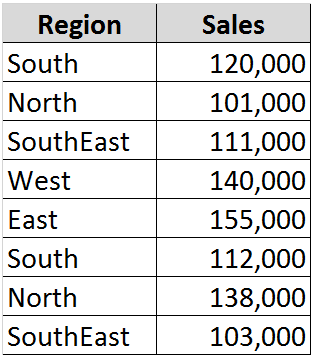
 As is the case with any well-designed database, each field (column) has a header/name.  Not surprisingly, this is a necessity when using this tool.

Next, we will access the Advanced Filter by going to the Sort & Filter group on the Data tab, and clicking on Advanced. 

In the List range field put the location of your database (in this case it is B3: C11).

For the Criteria range, let’s assume you want to see all of the sales for the North, West, and East regions, and you want to place this filtered result below your database (use B13 for a starting point).  Simply set up a range such as in the following cells E3:E6 (or wherever you wish):
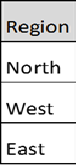
Your result will appear as follows in your chosen location:
Okay, Cool, but don’t stop there; you can use multiple field names and criteria to extract a wealth of information in a mere three clicks.

When you’re ready to Graduate up to another level, give the Advanced Filter a try.  I think you will like it!

Thursday, October 16, 2014

Automatic Fun!

It is probably fair to say that the vast majority of us appreciate Spellcheck in the apps we use on a daily basis (except, of course, when it chooses to do weird substitutions…).  What many Excel pros are missing, however, is that they can Customize automatic corrections with the highly useful, (but typically underutilized), Autocorrect tool.

This is particularly useful if you find yourself typing long (or even moderate) Boilerplate phrases that are tedious and time-consuming.  For a brief example, let’s say you work for Harley-Davidson Motor Company and the company policy is that no abbreviations of the corporate name be used in correspondence.  Typing the entire name every time you do any kind of spreadsheet or correspondence may not seem terribly onerous, but it can be a small irritation (and who needs that!).

The way you set up a phrase (company name in this case) in Autocorrect may seem like a bit of a chore, AutoCorrect can make this is as easy as typing HDMC.

Here is How You can Set this Up:

1. Go to FILE and select Options from the bottom of the column

2. Choose Proofing and click on the AutoCorrect Options button

4. In the Replace box, type HDMC

5. In the With box, type Harley-Davidson Motor Company

6. Click Add and then OK. That’s all there is to it!

But wait! There is a chance for some Tricks along with the Treats.  Many of you know the gag of accessing a fellow employee’s computer, and switching the mouse controls from (for example) to left-handed from right-handed, and then watching the bewilderment of the user.  Well, you can also have some fun (all very adolescent) with a person with Autocorrect. 

Let’s say you have a friend named Jim at work (or whomever). While he is away from his computer, go into AutoCorrect and enter Jim in the Replace box and Easy Rider in the With box. This can be done in Word too, of course, and he will perhaps think he is channeling the Harley experience.  (Just be sure you have him do this in your presence, so he doesn’t unnecessarily embarrass himself.)

Autocorrect.  Useful for productivity and a bit of mischief. 

Wednesday, October 8, 2014

Never Retire!

Since I have my 65th birthday coming up in a few days, I thought it would be interesting to take a look at a really cool formula or two that calculates when you are going to retire.  This can be a useful tool if, for example, you work in Human Resources or if you are doing Financial Planning.  It can also be entertaining if you just like to Daydream about days in the future when all you are concerned about is laying on the beach (getting even more wrinkly…).

I, for one, have absolutely no desire to retire anytime soon, since I enjoy teaching, blogging, and instructional design too much to give it up (besides, I look like I’m only in my 40s, Ha!).

If you have worked with Excel for some time, you know that it can be a bit quirky when it comes to handling dates.  Today, however, we will look at a couple of truly elegant ways of calculating your retirement date based on the Retirement Age you choose and on your Date of Birth.

In our first example, we’ll assume that the person’s birth date is in cell A2 and retirement age is 66.  In cell A3 create a formula as follows:

=DATE(YEAR(A2)+66,MONTH(A2),DAY(A2))

Another, even shorter, formula that you can use is the following (please note that you will need to format your cell as a date after using these formulas):


=EDATE(A2,66*12)
 
Well, there you have it; two uber-cool ways for Calculating Your Retirement Date. Now pardon me while I get back to work (laying on the beach can wait…).

Wednesday, October 1, 2014

Power Query

Pulling data from sources outside of Excel is a fact-of-life for many Excel users.  In the past, Microsoft Query was the Go-To add-in for importing data of this sort into Excel, but it had several limitations.  It is therefore exciting to see that Microsoft is offering a New (Free!) add-in called Power Query!

Microsoft Power Query for Excel provides an intuitive user experience for uncovering, combining, and refining data across a wide variety of outside sources. The list of possible sources is shown below, and even includes FaceBook and Wikipedia:
  • XML file
  • Text file
  • Web page
  • Facebook
  • Wikipedia
  • Sybase Database
  • Teradata Database
  • SharePoint List
  • OData feed
  • CSV file
  • SQL database
  • Microsoft Exchange
  • SQL Server database
  • Azure SQL Database
  • Access database
  • Oracle database
  • IBM DB2 database
With Power Query, you can create, share, and manage queries from search data available inside and outside your organization. Users of this powerful tool can find and use shared queries to mine the underlying data in the queries for their data analysis and reporting.

Using Power Query you can:
  • Zero in on the specific data you care about from your sources
  • Further discover relevant data using the search capabilities within Excel
  • Combine data from multiple, dissimilar data sources and prepare it for further analysis with tools in Excel and Power Pivot
  • Share the queries that you created with others within your organization
If you are a Power User and your job involves analysis of information stored in other sources and formats, you will likely want to explore Power Query.  It is, of course, all about Power (and did I mention it is Free?!?)

Wednesday, September 24, 2014

SUMIFS Rock!

In the spring of 2013, we took a look at the remarkably potent SUMIFS function.  It drew so much interest, a review of this outstanding tool is in order.

Creating reports that go on and on over dozens of worksheets is one of the most Egregious Ruts that Excel users sometimes find themselves.   On the other hand, the use of Excel’s many fine tools (such as Sumproduct, DFunctions, or Vlookup) can result in highly effective and professional Interactive Reports.  These reports are much more versatile and tend to be operated with more efficacy by the end user.

One often overlooked, but ultimately powerful and easy to use function, is SUMIFS.  Unlike its little cousin, SUMIF, the SUMIFS function allows you to conditionally sum values with Multiple Conditions, rather than just one.  This, of course, makes it a noble choice for interactive report.

The Syntax for SUMIFS is as follows:

SUMIFS(SumRange, [CriteriaRange1, Criteria1], [CriteriaRange2, Criteria2], …)

Let’s look at an example:  Assume that you have a table/database that has multiple entries of Sales for Months and Weeks. Using a SUMIFS formula, along with dropdown boxes for the Month and Week, you can make an Interactive Report that is contingent on the parameters you choose. Note that the Amount in the report on the right of the illustration below Sums up any value which has September for the month and Week 1 for the week.  Pretty Cool!


SUMIFS; Another powerful Excel tool that can make you look like a Rockstar!  Give it a try and find out what you might have been missing.

Thursday, September 18, 2014

Behind the Scenes

Any good Excel guru wants to have complete control over what is going on in his or her workbook.  Knowing what is going on Behind the Scenes is crucial for maintaining order and value in your Excel creations.

There are times, of course, when you are not the original author of the worksheet, and having some good, basic investigation techniques are invaluable.  With the following methods, you can quickly transform yourself into an Excel Sherlock Holmes!

Here is How to Get a Look behind the Scenes:

1) Do I have any Formulas Operating in My Workbook?

Well, you could click on each cell to reveal the formula in the Formula Bar, but who wants to do that?!?  You can instantly reveal all of this information in your entire worksheet with the Keyboard Shortcut:

Ctrl + ~

This elementary keyboard combination unveils the formulas in All of your cells.  You can then adjust your Sherlock hat and determine if there is a flaw in their construction or if everything is Spot On!

2)   Do You Need an In-Depth Review of Precedents and Dependents?

If you need Sleuthing Power in seeing what your data is doing and where it comes from, look no further than the Formula Auditing group on the Formulas tab. There you will find Trace Precedents, Trace Dependents, (and even Show Formulas). The information is returned in easily-understood graphics that help you make sense of the workbook you inherited from old Moriarty fellow.
 
If you want a handy shortcut for revealing Direct Dependents, click the keyboard as follows:
 
                                         Ctrl + [ 

These two fundamental investigative tools can Wow the people around you.  You may even be tempted to say, “Elementary my dear Watson”…

Thursday, September 11, 2014

Keeping Your Reports Up-to-Date

Keeping your Excel reports current up-to-the-minute or even up-to-date can be challenging.  There are several ways of approaching this, of course, and we will explore a couple of the key best practices to do this.

First of all, if you can store (not just analyze) your data in Excel, you can use some extremely powerful functions to mine your in-app database.  If you have your database and reports contained within one Excel workbook, you can use Boolean functions (i.e. SUMPRODUCT is the most straightforward…) to extract the information you want from your data.  Information is, of course, what any good analyst wants, as all the data in the world serves no useful purpose unless information is extracted from it…

By anticipating the addition of future data in the named ranges in your Excel database, the reports will automatically update as soon as any new date is added.  Simply name the ranges to include the currently empty records area that will be developed as future data is entered.

But, let’s say you do not have your data stored in your Excel workbook (e.g. SQL, Access, SAP, etc.).  Let’s also say that every time you download a data update from the database source you then have to manipulate it in order to have it produce the information you desire in Excel.  What can you do?

Having to do repetitive manipulation of data every time you need to update your reports can obviously deter you from keeping your data.  One excellent solution (which can make you look like a Rock Star in the process) is to Record a Macro of your repetitive steps and link it to a simple button in your report workbook.  Then whenever you import fresh data, you press the button (in cavalier style, of course) and Badda Bing, your report is Up-to-Date!

Keeping your Excel reports current up-to-the-minute or even up-to-date can be a Snap with a couple of compelling tricks!