Thursday, April 26, 2012

Easter Eggs Revisited

Well, it’s a bit past Easter, but it is time to revisit the topic of the so-called Easter Eggs that have been hidden in Excel. As was discussed in this blog back in 2010, Virtual Easter Eggs are hidden games or messages that have been built into various software by crafty developers who have a sense of humor and enjoy building in a bit of intrigue. In the case of Excel, those “In-the-know” felt smug knowing how to reach the cryptic content.

Where did the term “Easter Eggs” come from?
According to available history, the term was coined in the late 1970s at Atari by the renowned computer game designer, Warren Robinett. Since designers were not given credit for the games they created, Robinett included a hidden screen which said “Created by Warren Robinett”.

For those of us who remember using Excel 97, there was a particularly fine Easter Egg lurking within. This Excel version had a comparatively ambitious Flight Simulator hidden within the application. Using a rather simple combination of keyboard commands brought you to this remarkable (for the time) simulator.

Although more difficult to access, Excel 2000 included a Car Racing Action Easter Egg which resembled Spy Hunter (you can still find a version of this game online).

Excel 2003 included an Office Quiz featuring the Crabby Office Lady. If you still have this version and you are connected to the internet, you can access this egg by typing in “Tortured Soul” in the search box.

Although rumors to the contrary still persist, I know of no hidden gems in Excel 2007 or Excel 2010. The general consensus is that Easter Eggs have been eliminated from Excel due to potential security concerns and the desire by management to use all of the resources for “worthwhile” functions. If, however, you know of any eggs in these versions, please write to me at ExcelEnthusiast@gmail.com. I will send a One-Ounce Copper Lakota Bullion Coin to the first two verifiable replies.

Although it is not an Easter Egg, Excel possesses an Undocumented "DATEDIF" function, which calculates the difference in whole days, months or years between two dates. It can be quite useful, and it is curious that Microsoft doesn’t include it in its general information.  Even though it has been around since Version 5 and is still present in Excel 2007 and 2010, it was only documented in Excel 2000.

In any regard, Happy Hunting! If you know of any eggs in Excel 2007 or 2010, send me an email and Win a Prize!

Wednesday, April 18, 2012

Highlight Repetitive Data

 
Building on the theme of Conditional Formatting that was discussed last week, there are several instances where having Repetitive Data (identical data entered more than once) into a database is Undesirable. For instance, if you were an HR Manager, you may wish to have the names of employees entered Only Once in a company database.

It is useful, therefore, to have a Tool to Identify any such repetitive entries. Using Conditional Formatting with a Clever Formula is one way to accomplish this. Noticing that we are using the above Excel graphic as an example, the following COUNTIF formula, (please note the less-than and greater-than characters that together mean Not Equal To in Excel), can do the trick:

=COUNTIF($A$1:$C$5, A1)< >1

Notice too that the first argument refers to the entire database, and uses an Absolute Reference, whereas the second argument refers to the first cell in the database, and uses a Relative Reference.

Since you are using this formula in a Conditional Formatting statement, you want to have a result of TRUE whenever you want the infringing cell to be highlighted. When the formula returns a TRUE, it activates your chosen formatting.

Clever, eh? Give it a try!

Wednesday, April 11, 2012

Reverse Conditional Formatting

Here is a Very Interesting Trick that you probably have never run across. I think we can all agree that it is almost always helpful to have Visual Cues in Excel, and this one takes an Unusual Approach.

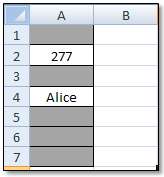
Let’s say you have a worksheet in which you are entering data in a column, and you want it to be Obvious if a cell within that column is Blank (a Best Practice for proper database maintenance). Here is a unique way to do this:

Let’s assume you are going to be putting data in the short range of A1:A10.

1. Your first step is to apply a Fill Color to your range (in this case, A1:A10)

2. Then select your range and go to Conditional Formatting / New Formatting Rule

3. Choose Use a formula to determine which cells to format and put the following:

4. =IF(NOT(A1=""), TRUE, FALSE)

5. Finally, for your Format, use Fill / No Color

Now whenever you place data (numbers, text, or mixed) in one of your cells in the range, the Fill Color is Cleared! How Cool is That!

Whenever you have a cell that has NOT had data entered into it, the original Fill Color remains. Give it a try; I think you will find this to be another Great Trick in Your Excel Tool Belt!

Thursday, April 5, 2012

The Beat Goes On…


Since you are reading this blog, it may be likely that you have influence within your company as regards the software they adopt.  When it comes to Excel, a recent survey showed that many companies still use Excel 2003, some use Excel 2007, and a comparative few have adopted Excel 2010.

Once again, since you are a reader of this blog, you are probably and Early Adapter, and would like to see your company update to the latest version of Excel.  To that end, I have condensed the most compelling reasons to update:

Reason to Upgrade from Excel 2003 to Excel 2007

  • More Room:  15 times more rows and 62 times more columns

  • Pivot Tables:  Many enhanced pivot table features

  • Versatile Functions/Formulas:  Over 8 times the number of arguments and length

  • XML Formats:  Better integration with back-end systems

  • Dashboards:  Easily created to track key indicators

 Reasons to upgrade from Excel 2007 to 2010

  • Recording Chart Macros:  Now available in Excel 2010

  • Sparklines:  Great new mini-charts that can enhance understanding of data

  • Statistical Functions:  Financial and math functions, as well as the wizard have been much improved.

  • Conditional Formatting:  Engaging and intuitive new formatting now available in Excel 2010

  • Improved Productivity:  The company’s  Excel Gurus can leverage the enhanced features
Like so many other things in our increasingly technological world, if you don’t keep up on a regular basis, you can one day find yourself being passed by at the parade of progress.

Thursday, March 29, 2012

Counts!

Now, some people have said that I am a bit “Batty”, but that’s another story. As we explored two years ago in this blog, there are several ways to Count (Count/Dracula/Bats, get it?...) your data in Excel.

It is important to know the uses and differences of the major types of Count Functions. In summary, they are:

1. COUNT: Simply counts the number of cells in a range that contain a number

2. COUNTA: Counts the number of non-blank cells in a range (including those with text)

3. COUNTBLANK: Counts the number of empty cells

4. COUNTIF: Flexible counting function (this can be a little tricky, so we will explore with some examples)

The COUNTIF function can be challenging to some users because of the prevalent use of quotation marks within the formulas. The following examples will demonstrate how it works (in each case, the formula uses a range named Data):

Count the number of cells that contain the word "James" (not case sensitive):
=COUNTIF(Data,"James")

Count the number of cells that contain the words "James" and “Suzanne”:
=COUNTIF(Data,"James") + COUNTIF(Data,"Suzanne")

Count the number of cells containing any text (ignoring the numbers):
=COUNTIF(Data,"*") Count the number of 3-letter words: =COUNTIF(Data,"???")

Count the number of cells containing text that begins with the letter "T":
=COUNTIF(Data, “T*”)

Count the number of cells that contain a value greater than or equal to 15:
=COUNTIF(Data,">=15")

Count the number of cells that contain a value from 5 to 20:
=COUNTIF(Data,">=5")-COUNTIF(data,">20")

This is, I might add, not the best tool to use in many cases. It does, however, come in handy frequently when you analysis requirements are not too demanding. I hope you have had a good week so far, and that you make your weekend, Count…

~ All the best ~

Thursday, March 22, 2012

Troubleshooting Excel


Have you ever Inherited an Excel workbook that simply didn’t make sense? As we discussed in this blog a couple of years ago, problems inevitably happen in Excel. One of the most common issues is, of course, the use of formulas (and, let’s face it, the peculiar way some users set up his or her workbooks).

Troubleshooting is, without question, a Valuable Skill in Excel!

An easy way to identify the cells with formulas (and display them) is to hold down the Ctrl button and press ~. When you press this keyboard combination, all of your formulas will appear in their cells (pressing the combination again will bring back your original view). That is a good start for determining what is going on “behind the scenes”.

Of course the foregoing does not solve all of your investigative challenges. The Vexing Problem can be trying to determine from where a formula is drawing its information. Excel contains an Elegant Tool for clicking on the formula cell and tracing its Precedents. For Excel 2003, go to Tools / Formula Auditing. For Excel 2007 and 2010, go to Formulas / Formula Auditing.

Clicking on Trace Precedents will give you a Graphical Illustration with Arrows that show you from where your information is being derived.

Ctrl + ~ and Trace Precedents are two excellent tools that can help you figure out those cryptic Excel workbooks that you inherit from others. Such a good thing…

Thursday, March 15, 2012

Add a Watermark!

There are times when an Excel user may want to include a WATERMARK to indicate a Special Status of an Excel worksheet. You may wish to mark it CONFIDENTIAL or DRAFT, and a watermark can be an ideal solution.

Although this functionality is not built-in to Excel, it is not difficult to place a Picture in your Header to mimic this effect with a few brief steps:

1. Using WordArt, you can easily create an image (such as CONFIDENTIAL) and then upload it into Paint (or other image-handling app) and save it as a .png file.

2. Open the worksheet in which you wish to display your watermark

3. Click on Header & Footer on the Insert tab ribbon

4. Click on Picture on Design tab ribbon and choose your watermark picture

5. Resize your watermark picture by clicking on Format Picture dialog box, select the Options that you want on the Size tab.

It may take a few minutes to do this the first time, but the results are really quite effective. If you ever need a Watermark in your Excel worksheet, give it a try!