Monday, July 27, 2009

Green Bar Accounting Paper


I have to admit that I am old enough to remember using the old-fashioned Green Bar Accounting Paper (and not on a computer, mind you). One of my favorite variations had every third row highlighted in light green. A quick search of the internet shows that it is still around today, since it makes reading long rows of data much easier.

Wouldn’t it be great if there was an Easy Way to simulate this in Excel? Yes, indeed, and it is so simple, you will laugh! Here is how you do it:

1. Fill the third row in your database a light green

2. Select the first three rows (two with no color and the third in light green), and using the fill handle, drag to the end of the database

3. Important: Click on the Auto Fill Options box in the lower right-hand corner of your database and select Fill Formatting Only.

Voila! An Easy-to-read Green Bar Excel worksheet!

Monday, July 20, 2009

What’s the Dif?

Mysteriously, for the past 10 years or so, Microsoft has chosen not to include documented information (in Help or otherwise) of a very interesting function in Excel. DateDif is a very useful tool to do calculations using dates. Here is how the function looks and works:

=DateDif(First Date, Second Date, Time Interval)

Where the Time Interval is expressed in:
1) "m" = months
2) "d" = days
3) "y" = years

An enjoyable application of this function is to nest the NOW() function into it and calculate a person’s age as follows (Note: the “BirthDate” can refer to an easily changed cell value):

=DateDif(BirthDate, NOW(), “y”)

Give DateDif a try some time. You may find numerous ways to use it in business (as well as amusement).

Monday, July 13, 2009

Instant Stock Quotes and Research

Would you like to see how your favorite stocks are doing? Well, you can always go to some research site on the web or check a newspaper (remember newspapers?). If you have Excel open, however, here is a very cool and easy way to find out what is happening on Wall Street.

Simply enter the stock symbol (e.g. GOOG, SBUX, GM, etc.) in a cell and do the following:
1. Alt+click on the cell to launch the Research Pane
2. Select stock quotes to see MSN Money Stock Quotes from the dropdown box
3. Presto! There is your information!

Want more information? Use the dropdown box to choose Thomson Gale Company Profiles and dig even deeper into the mysteries of the market. The next time your boss mentions the stock market, ask her if she would like to see this cool trick (you’ll get that corner office before you know it…).

Monday, July 6, 2009

Dynamically Linked Chart Title

Everyone knows how cool charts are. Here is a way to make them even cooler!

Let’s say that you have a table of data and a chart that changes dynamically every time you change the value in a dropdown box (which we discussed in the September 1, 2008 post in this blog). Would it be possible to have the title of the chart change to reflect the value chosen? Yes, indeed! (It’s even easy…)

1. Create your chart linking it to your dynamic table
2. Select your chart by clicking on it
3. Click the Chart menu and choose Chart Options
4. From the Chart Options window, click on the Chart Title box
5. Enter a temporary placeholder value (Such as “Chart1) and click OK
6. Make sure the temporary title is selected and click the Formula Bar above the sheet
7. Type "=" then click on the cell that contains the dropdown box and click Enter

Wow! Your chart's title changes in sync with the dropdown value! Use this and watch the executives’ eyes glaze over in amazement…

Monday, June 29, 2009

Where are My Worksheets?


It is easy to create an Excel workbook with so many worksheets you can’t see them all at a glance. Scrolling to find them is a drag, so the creators of Excel have provided a convenient alternative.

If you want to see/use an inventory of your worksheets, all you need to do is right-click ("right-click is our friend") the tabs navigation buttons and a floating list of all the worksheets will appear.

Where are my worksheets? Right-click navigation and Bamm! – There they are!

Tuesday, June 23, 2009

Ready for Prime Time?


Taking a walk down Geek Lane this week with a look at exploring Prime Numbers in Excel. Specifically, Mersenne Prime Numbers. A Mersenne Number is a number in the form of Mn=(2^n)-1. Although Excel is not robust enough to explore this in depth, it is nonetheless interesting to see what can be done.

So, assuming you have a bit of geek in you, here is what you can do.

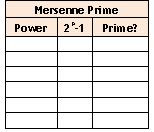
1. Create a simple spreadsheet with a similar format to the following starting in A1:

2. Starting in A3, insert consecutive numbers starting with 2 into Column A.
3. In B3, place the formula, “=(2^A3)-1”and copy down with relative references
4. Go to the Blue Moose Technology site (Thanks, Blue Moose!) and copy the prime code into a new module in your workbook
5. Finally, use the resulting “ISPRIME” custom function starting in C3 to determine if the numbers in the B column are prime

Obviously, this exercise is not of interest to everyone, but if you find both Excel and Prime Numbers exciting, give it a try. You might find you are “Ready for Prime Time”.

Monday, June 15, 2009

Microsoft Excel 2010 Technical Preview

Reading and speculating on future versions of Excel (and Microsoft Office in general) can heighten anticipation for what users always hope to be a panacea for all of their work-related challenges. The latest version of Excel is due to be distributed to select users for a Technical Preview this July.

The new application is purported to offer a forward-looking browsing experience and an essentially unprecedented open source interface. There are reportedly many cool new features, including much more powerful Pivot Table tools. This is particularly exciting for anyone doing business analysis in Excel.

Also of note, the new MS suite will be released in both 32 and 64 bit versions, so hardware that can run the current Office 2007 will be able to handle 2010 as well.

If you are interested in learning more or being considered for taking part in the Technical Preview, you can get additional information and register by following the link below:

http://www.office2010themovie.com/

Happy Excelling!